Category: Documentation

  • MODX M6/7/8 size dimensions versus MODX 6/7/8

    MODX M6/7/8 size dimensions versus MODX 6/7/8

    If you’re reading this you’re likely very aware that Yamaha have released the next iteration of their MODX line. We thought it’d be helpful to provide the dimensions of the new M Series versus the previous MODX + series (remembering that the MODX+ dimensions are the same as the MODX original release).

    Here we go:

    1. MODX M Series (2025)

    Yamaha MODX M6 / M7 / M8 Dimensions

    ModelWidthDepthHeightWeight
    MODX M81310 mm (51.6″)391 mm (15.4″)152 mm (6.0″)13.6 kg (30.0 lbs)
    MODX M71089 mm (42.9″)347 mm (13.7″)117 mm (4.6″)7.6 kg (16.8 lbs)
    MODX M6882 mm (34.7″)347 mm (13.7″)117 mm (4.6″)6.6 kg (14.6 lbs)

    2. MODX+ Series (2023)


    Yamaha MODX6+ / MODX7+ / MODX8+ Dimensions

    ModelWidthDepthHeightWeight
    MODX8+1333 mm (52.5″)404 mm (15.9″)160 mm (6.3″)13.8 kg (30.4 lbs)
    MODX7+1144 mm (45.0″)331 mm (13.0″)134 mm (5.3″)7.4 kg (16.3 lbs)
    MODX6+937 mm (36.9″)331 mm (13.0″)134 mm (5.3″)6.6 kg (14.6 lbs)

    3. Dimensional Differences (M vs. MODX+)

    Size & Weight Comparison

    ModelWidth ChangeDepth ChangeHeight ChangeWeight Change
    M8 vs 8+-23 mm (-0.9″)-13 mm (-0.5″)-8 mm (-0.3″)-0.2 kg (-0.4 lbs)
    M7 vs 7+-55 mm (-2.2″)+16 mm (+0.6″)-17 mm (-0.7″)+0.2 kg (+0.5 lbs)
    M6 vs 6+-55 mm (-2.2″)+16 mm (+0.6″)-17 mm (-0.7″)Same


  • What’s changed in MainStage 3.6.5

    What’s changed in MainStage 3.6.5

    Here’s what’s changed in MainStage, with the latest update to MainStage, 3.6.5:

    New in MainStage 3.6.5

    New features and enhancements

    • Beat Breaker is now available as plug-in.
    • Sample Alchemy is now available as a plug-in.
    • You can now use the new command Reset Window Configuration from the Windows menu to restore the default window configuration for all open windows.

    Stability and reliability

    • MainStage no longer hangs when closing the “8 Drum Pads” concert using Logic Remote.
    • MainStage no longer quits when pressing Command-Equal sign (=).
    • Using the Select All command in Layout mode no longer causes MainStage to quit.

    Performance

    • Concerts with instances of Sampler that have been dragged and dropped from other concerts or from the Finder no longer sometimes open with the wrong samples loaded.

    Accessibility

    • Channel strips can now be selected with VoiceOver.
    • VoiceOver can now be used to delete channel strips.
    • VoiceOver now correctly announces the latency value on channel strips.

    Mixer

    • Output 1-2 and Master channel strips no longer disappear when loading patches that attempt to route to mono outputs.
    • The Instrument Channel Strip Inspector’s MIDI Input Tab now contains a section at the top of the Input Controller menu for recently assigned controllers.
    • Clicking the channel mode button from mono to stereo on Output 2 no longer unexpectedly sets the level of the resulting Output 1-2 channel strip to its minimum value.
    • The Expression knob on the Mixer now reliably shows Expression value mappings saved at the Concert level.

    Key Commands

    • The Channel Strip: Show Original/Show Next Alias key command now selects the channel strip as expected.

    MIDI

    • External Instrument channels sending Bank select messages now send the correct sequence of MSB and then LSB messages.

    Mappings

    • Mixer or plug-in controls mapped to the same Workspace object now maintain their relative positions when controlled from the object.

    Undo

    • Undo now works after changing the output of a channel from stereo to mono.

    Logic Remote

    • The mute button on the master fader in in Logic Remote now updates when it is engaged in MainStage.
    • Saving MainStage concerts from Logic Remote now works reliably.
    • When adjusting knobs or faders on multiple selected channels in MainStage, all the corresponding controls in Logic Remote now update.

    General

    • Notes sustained over Patch changes are no longer cut off when a MIDI Transformer plug-in is active.
    • The Screen Control inspector now immediately updates to reflect changes in channel strip selection.
    • Clicking the Layer MIDI Input Bypassed button in the Layer Editor no longer causes the view to unexpectedly switch to the Plug-in Library.
    • A Multi-timbral Settings window that’s behind another window is now brought to the front when selected again from the Window menu.
    • Renamed Sampler channel strips now reliably retain their names when a saved concert is re-opened.
    • The current Expression setting is now retained when the Audio Settings are changed.
    • The Select Next/Previous Settings commands now work reliably in patches that contain an original and alias of the same channel strip.
    • The Map Parameter button in Layout view now remains enabled when clicking on objects in the Workspace.

    Let us know in comments if you found the update smooth or otherwise. And don’t forget to check out our podcast, we regularly speak with guests who have MainStage as a core part of their rig.

  • Yamaha Montage M6 M7 and M8x weights

    Yamaha Montage M6 M7 and M8x weights

    Looking for the comparative weights in kilos and pounds for the Yamaha Montage models? We have you covered:


    Montage VariantWeight (lbs)Weight (kg)
    Montage 633lb, 1 oz.15.00
    Montage 737lb, 8 oz.17.01
    Montage 863lb, 15 oz29.00
    Montage M633lb, 12 oz.15.30
    Montage M738lb, 13 oz.17.60
    Montage M8x61lb, 15 oz.28.10

    Don’t forget our podcast, where we regularly talk to guests who use the Yamaha Montage.

  • Novation Peak and Summit 2.2 Firmware Release Notes

    Novation Peak and Summit 2.2 Firmware Release Notes

    Novation Summit 2.2 Update
    Great to see some new bits and pieces and lots of bug fixes!
    Novation Peak:
    In the rare event front panel controls become responsive after completing this update it will be necessary to restart your unit.
    * Local state is now stored in the global settings. If Local is saved to ‘Off’ a temporary display will show on boot. Settings must be saved in order to be retained through a power cycle (go the Settings menu and press Save)
    * All local modes can be set by sending the following values on CC122. A temporary display will be shown when the local state is changed via MIDI: 0 = off
    127 = on
    Bug fixes:
    * Sudden changes in stereo position – fixed an issue where certain combinations of Spread, SpreadMode and PanPosn settings could result in sudden changes to the distribution of voices in the stereo field.
    * Poly mode voice management – Previously when using 8 voice unison with long envelope times in Poly mode all 8 voices may not be triggered when playing in legato style. All 8 voices are now triggered whenever a new key is pressed. This fix does not apply to Poly2 mode.
    * Hanging notes – Playing greater than 8 notes after the unit has booted can no longer result in a hanging note.
    * Reverb Size not recalled correctly when loading a patch – Reverb Size front panel control and Reverb Size menu parameter (FX 8/10) now work bi-directionally and settings are recalled correctly.
    * All sounds off/all notes off – Peak now responds to both CC120 & CC123 according to the MIDI org specs. CC120 (all sounds off) cancels all notes and shuts down envelopes & FX – settings are restored with the next note. CC123 (all notes off) cancels any active notes.
    * LFO FadeSync – LFO FadeSync now works in both Mono & Poly voice modes. This feature determines whether fade is applied to an LFO, when set to ‘On’ the fade value will be applied to with each keypress in legato playing style. When set to ‘Off’ the fade will be applied with the first key press in legato playing style.
    * Mixed displays when moving multiple controls – Revisions have been made to the screen display prioritisation to prevent mixed/garbled displays appearing on screen.
    * Screen doesn’t wake from a USD MIDI event – Fixed an issue when the screen would not wake when receiving a USB MIDI event.
    * Ignores LSB in CC pairs – LSB is no longer ignored, this reduces stepping when controlling Peak via external MIDI
    * Notes held in Arp cache when Arp is off – In previous builds if Arp was disabled while notes were being held, the notes would be cached causing the same arpeggiated sequence to play when Arp is enabled again. The Arp note cache is now cleared when Arp is disabled.
    Novation Summit:
    * Local state is now stored in the global settings. If Local is saved to ‘Off’ a temporary display will show on boot. Settings must be saved in order to be retained through a power cycle (go to the Settings menu and press Save)
    * All local modes can be set by sending the following values on CC122. A temporary display will be shown when the local state is changed via MIDI: 0 = off 64 = seq 127 = on
    * Pressing both Octave buttons resets the octave range – As with other Novation synths, pressing Octave +/- will reset any octave shift applied to the keys through the Octave buttons.
    Bug fixes:
    * Sudden changes in stereo position – fixed an issue where certain combinations of Spread, SpreadMode and PanPosn settings could result in sudden changes to the distribution of voices in the stereo field.
    * Animates not available in Local | Seq – Both animate buttons now work in Single & Multi mode when local mode is set to Seq.
    * Oscillator Diverge & Drift in multi-patches – These settings now work on a per-part basis.
    * Switching to Multi Mode via MIDI – NRPN 62:0:1 to global MIDI channel now switches to Multi. NRPN 62:0:0 to either part A or part B MIDI channel switches to Single.
    * LFOs on both parts of a multi adapt to tempo changes – Previously LFOs on a multi only updated to tempo changes if part B was selected. This is now fixed.
    * LFO Common – LFO common is now working uniformly across voices 1-8 & 9-16 and can be used on a per-part basis in multi-patches.
    * Reverb Size not recalled correctly when loading a patch – Reverb Size front panel control and Reverb Size menu parameter (FX 8/10) now work bi-directionally and settings are recalled correctly.
    * All sounds off/all notes off – Summit now responds to both CC120 & CC123 according to the MIDI org specs. CC120 (all sounds off) cancels all notes and shuts down envelopes & FX – settings are restored with the next note. CC123 (all notes off) cancels any active notes.
    * LFO FadeSync – LFO FadeSync now works in both Mono & Poly voice modes. This feature determines whether fade is applied to an LFO, when set to ‘On’ the fade value will be applied to each keypress in legato playing style. When set to ‘Off’ the fade will be applied with the first key press in legato playing style.
    * Mixed displays when moving multiple controls – Revisions have been made to the screen display prioritisation to prevent mixed/garbled displays from appearing on screen.
    * Screen doesn’t wake from a USD MIDI event – Fixed an issue when the screen would not wake when receiving a USB MIDI event.
    * Ignores LSB in CC pairs – LSB is no longer ignored, this reduces stepping when controlling Summit via external MIDI
    * Notes held in Arp cache when Arp is off – In previous builds if Arp was disabled while notes were being held, the notes would be cached causing the same arpeggiated sequence to play when Arp is enabled again. The Arp note cache is now cleared when Arp is disabled.
    * Arp to MIDI behaviour has been changed. Please see this page for more information: https://support.novationmusic.com/…/arti…/13001787498898
    * Octave values show as -64 in some multi-patches – Per part octave displacement values shown multi patch page 4/4 now display correctly.
    * Pressing ‘Compare’ while Part B is selected changes Part selection to Part A – Updated part selection and Multi-mode state are now retained when using ‘Compare’.
    * LFO 3 & 4 values differ between voices 1-8 & 9-16 – LFO 3 & 4 are now uniform across all voices.
    * Activating Arp on a multi patch will cancel latched notes on the other part when using MIDI loopback – Latched notes are now retained in this circumstance.
    * ‘saved val’ display flickers between Part A & Part B when using multi control – Screen will show the saved value on Part A and Part as ‘saved ptA’ & ‘saved ptB’ when Parts A & B are selected.
    * Octave buttons don’t respond when local is off – Octave buttons now adjust to the octave range of the MIDI output when local is off.
    * Part A/B categories update correctly – Category fields now show correctly in multi-patches.
    * LFO LEDs updating when using Phase Sync on multi patches – LED displays in this circumstance have been improved and reflect the per-part LFO settings.
  • What’s changed in MainStage 3.6.4

    What’s changed in MainStage 3.6.4

    I always get a little antsy when MainStage is updated, but here’s what’s changed in the latest 3.6.4, which is essentially just a bug fix update with a minor enhancement to the transpose object:

    1. New Features and enhancements

    • The Transpose object in the Workspace now displays the composite result of transpositions at the Concert, Set and Patch levels.

    2. Stability and reliability

    • MainStage no longer quits unexpectedly when using Soundtoys Effects Rack.
    • MainStage no longer quits unexpectedly when a Mono>Stereo instance of a plug-in is bypassed.

    3. Performance

    • Keeping the Multimeter open no longer causes MainStage memory usage to increase.

    4. Screen controls

    • The Do Not Pass MIDI Thru setting for screen controls now works correctly.
    • Assign mode now remains active when switching from one screen control to another.
    • VU Meters mapped to the Loudness plug-in now work correctly.
    • The Screen Control Inspector Saved Value slider for buttons is now consistently available at the Concert level.
    • The Meter object mapped to Beat Count parameter now displays all beats.
    • The Map Parameter button now remains active when switching from one screen control to another in Edit mode.

    5. Mixer

    • Output and bus routings are now reliably maintained when importing patches from another concert.
    • Pasted aliases now reliably include all mappings from the original object.
    • Multiple channel strip faders now maintain the same relative values when adjusted from a screen control.

    6. Plug-ins

    • MainStage now provides the correct AU Host Identifier to Audio Units plug-ins on Intel Macs.
    • Playback and Loopback plug-ins now reliably display the correct waveform.

    7. Settings

    • The Hot-Plug Behavior setting now works as expected when Do Nothing is selected.

    8. Workspace

    • The UI for Alchemy in the Workspace now reliably displays correctly.

    9. Mappings

    • The Assign & Map button no longer remains active when switching from a mappable control to one that is not mappable.

    10. Key commands

    • The Next Channel Strip Setting key command now works correctly.

    11. Control surfaces and MIDI controllers

    • MainStage now reliably sends back the correct value to TouchOSC when a value is received from TouchOSC.

    12. General

    • Channel strip names no longer unexpectedly change when stepping through patches.
    • Adding an instance of Quick Sampler no longer causes all factory content used in the concert to be saved into the concert package.
    • Custom icons assigned to patches in saved concerts now remain when the concert is re-opened.

    Let us know in comments if you found the update smooth or otherwise…

  • Steely Dan / Donald Fagen Keyboard Parts for Download

    Steely Dan / Donald Fagen Keyboard Parts for Download

    One of this things I love about us keyboard players, is that we can be a very generous bunch. One such generous person is Paul Roberts, who has painstakingly scored the keyboard parts from 50 Steely Dan / Donald Fagen tunes.

    You can download them from Google Drive here.

    In Paul’s own words on the files themselves: “Some songs have endings and might have slight deviations from the originals but 90% of these pretty much follow the record versions.”

    Big hat tip to Paul himself and the Keyboard Players in Cover Bands Facebook Group


  • Korg Nautilus OS 1.2.0 release notes

    Korg Nautilus OS 1.2.0 release notes

    Korg have released version 1.2.0 of their software for the Korg Nautilus. You can download it for yourself here, but here’s what’s changed:

    • Expansion of PROGRAM bank and WAVESEQ bank
      [Improvements] The KORG bank in PROGRAM mode has been expanded from 20 to 40 banks, allowing more programs to be saved and sound libraries to be loaded. Similarly, the Wave Sequence bank has been expanded from 15 to 20 banks. Related pages have been changed in accordance with the bank expansion.
    • KRONOS PCG file support
      [Improvements] Support for loading PCG files saved with the KRONOS has been added, allowing you to use tones created with the KRONOS with NAUTILUS.
      * KRONOS-specific functions and NAUTILUS-specific functions will not be reproduced correctly.
    • General
      [Bug fixes]
      In addition to those listed above, various other minor improvements and bug fixes are also included in this update.

    For NAUTILUS Editor users
    Please note that NAUTILUS System v1.2.0 is NOT compatible with NAUTILUS Editor Ver1.0.0.
    Please wait until NAUTILUS Editor ver1.2.0 is released to use the NAUTILUS Editor with NAUTILUS System v1.2.0.

    Requirements
    ・An FAT32 formatted USB Memory. 1GB or more free space.・A computer which can use USB Memory.

    How to install
    Instructions for updating are in the document file which is extracted from the downloaded file.

  • Uploading patches to your DX7 on a Mac with OSX

    Uploading patches to your DX7 on a Mac with OSX

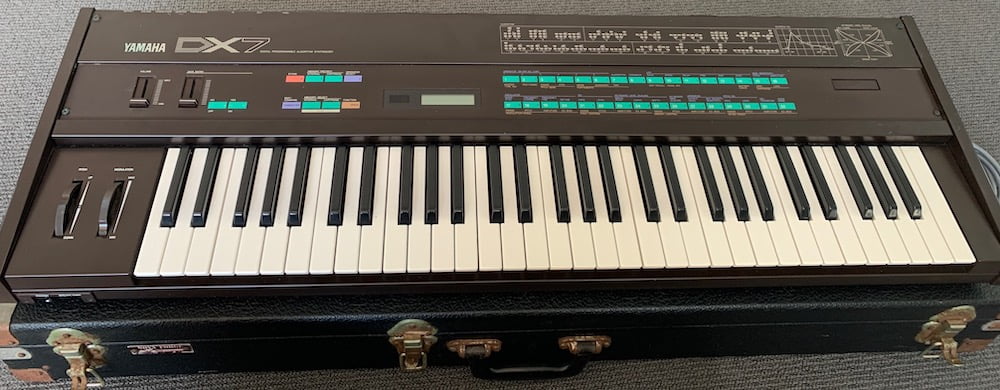
    Oh the fun day I’ve had. Yesterday I took delivery of an original DX7 (see disclaimers below) and obviously the default 32 factory patches aren’t going to maintain anyone’s interest for long. Hence the fun day.

    Over the past six hours I’ve trawled around a bunch of great information spread across a bunch of locations, and have come up with this easy guide to transferring Sysex data to your DX7 from your Max running OSX (Catalina at time of writing).

    First, some disclaimers:

    1. The DX7 I own is the original one i.e. a ‘Mk 1’ machine. These instructions won’t work in full on the subsequent models (DX7s, DX7 II, DX7 IIFD etc)
    2. The USB audio interface you use will play a BIG role in how successful this process is. I initially tried on a PreSonus Studio 1824c and it would not work – the DX7 froze every time I connected the MIDI cables up. I then tried the Komplete Audio 6 interface and it worked like a dream.
    3. Check the 5-pin DIN MIDI cables you use – if the below process doesn’t work this could be why if you’ve dredged up a 1987 cable from under the house.
    4. I only did this on a Mac – but most of the info is usable on other operating systems. I hear MIDI Ox is a great app for non-Mac users.

    The process:

    1. Connect your DX7 and Mac. You need an audio interface that connects to your Mac and that has MIDI IN and MIDI OUT 5-pin ports.
    2. You need two MIDI cables. Connect one from the MIDI OUT of your interface to the MIDI IN of your DX7. Connect the other from the MIDI IN of your interface to the MIDI OUT of your DX7.
    3. Now you need to get your DX7 ready to accept the SysEx data from your Mac. There’s three steps (this handy video shows you the exact buttons):
      • Press the Function Key then the ‘8’ button. If ‘MIDI Ch=1’ is displayed you don’t need to do anything, otherwise use the ‘Yes’ button or Data Entry slider to change it to 1.
      • Press the ‘8’ button a second time. If the display says SYS INFO AVAIL you don’t need to do anything, otherwise use the ‘Yes’ button or Data Entry slider to change it to SYS INFO AVAIL
      • Now press the green Internal Memory Protect button. If will display MEMORY PROTECT INTERNAL ON as the default. Use the ‘No’ key to change it to MEMORY PROTECT INTERNAL OFF
      • For younger synth users it will seem strange that you don’t save these settings but they are now set up how you need them.
    4. Now you’re ready to transfer SysEx data.
    5. SysEx Librarian is the app you need on your Mac to do this, and here’s where you get it. It’s free!
    6. Install SysEx Librarian
    7. You now need some patch SysEx data to transfer. This is where the wonderful Bobby Blue DX7 page comes in. I downloaded the ‘All The Web Collection’. It’s a standard ZIP file – just unpack it wherever you want.
    8. In SysEx librarian, you can either drag the downloaded SysEx files straight into the window of the app or use the ‘Add to Library’ option under the File menu in the app.
    9. Important: the interface needs to be selected from the destination drop-down as shown in Figure 1 below. ‘Act as a source for other programs’ won’t work for this task.
    10. If you’ve imported more than one file, select the one you want and then click on the Play button.
    11. A dialog will come up showing that the transfer is happening. On your DX7 it will display MEMORY PROTECT MIDI RECEIVED.
    12. If you get an error, in SysEx librarian preferences adjust the transmission speed to be lower. I actually set it at 2% to be super-conservative.
    13. That’s it! Now press the green Internal Memory Select button and then the number button of your choice to see each patch,
    Figure 1: Ensure you have your interface selected in the destination menu

    I hope that’s of some help to you. If the transfer isn’t working and you’ve checked cables, tried a different interface etc, then you may have an issue with your DX-7. Have a deep search of the internet for that: there’s a thousand and one causes.

    Enjoy! I’m off to look at some commercial DX7 sound banks

  • Yamaha DX-7 Manual Download

    Yamaha DX-7 Manual Download

    Looking for a full PDF user manual for the Yamaha DX-7?

    Well here it is:

    Source: Yamaha